
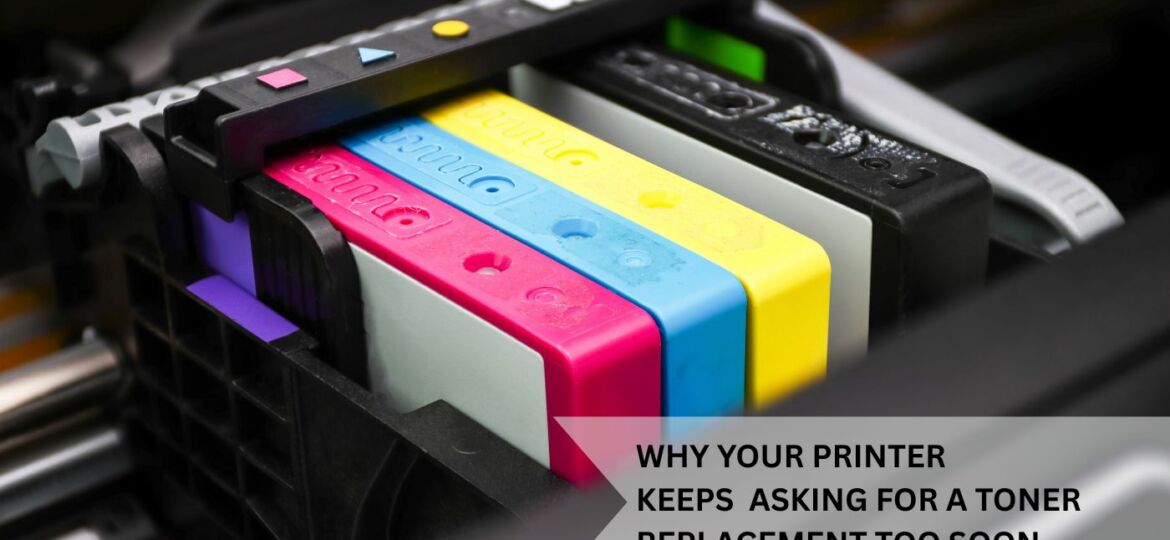
Why Your Printer Keeps Asking for a Toner Replacement Too Soon
It’s frustrating when you’re printing something important and suddenly your printer shows a low toner warning. You pause for a second, because you’re sure the cartridge was replaced not long ago—yet here it is asking for another one already.
Whether you are using a laser printer for your home office or managing a fleet of multifunction printers for a large corporation, the “Low Toner” warning often feels like it’s crying wolf.
So, why does your printer keep demanding a refill before you’ve even made a dent in that ream of paper? Let’s dive into the common reasons why your all in one printer might be acting up and how you can get every last drop of value out of your cartridges.
1. The “Default Settings” Trap
Most printers come out of the box with settings optimized for “Best Quality.” While this makes your documents look sharp, it uses a significant amount of toner.
If you are printing internal memos, grocery lists, or rough drafts, you don’t need every letter to be gallery-quality.
- The Fix: Switch your default settings to “Draft Mode” or “Toner Save Mode.” This reduces the density of the toner applied to the page. You’ll barely notice the difference in text, but your cartridge will last significantly longer.
2. Document Complexity and Page Coverage
When manufacturers advertise that a cartridge can print 3,000 pages, they are basing that on 5% page coverage. Imagine a standard letter with a few paragraphs of text and plenty of white space—that’s 5%.
If you are using a color printer to print high-resolution images, heavy bold fonts, or documents with dark backgrounds, your coverage might be closer to 20% or 30%.
- The Reality: If your average page coverage is 15%, your “3,000-page” cartridge will actually only yield 1,000 pages.
3. The “Low Toner” Warning is Often Premature
Printer manufacturers want to ensure you never actually run out of ink in the middle of a job. Because of this, many machines are programmed to trigger a warning when the cartridge still has 10% to 20% of its toner left.
Pro Tip: Don’t replace the cartridge the second the light blinks. Keep printing until you actually see the print quality start to fade or streak.
4. Frequent Cleaning Cycles
Every time you turn your multifunction printer on or wake it up from a long sleep, it performs a “startup cycle” or a “cleaning cycle.” During this process, the printer prepares the drums and rollers. In some models, a small amount of toner is used to ensure the components are lubricated and ready to go.
If you turn your printer off and on multiple times a day, you are essentially “bleeding” toner. It’s often better to leave the printer in Sleep Mode rather than turning it completely off.
Common Reasons at a Glance
Reason | Impact | Solution |
High Page Coverage | High | Reduce image sizes and bold fonts. |
Early Warnings | Moderate | Ignore the first warning; print until it fades. |
Startup Cycles | Low | Keep the printer in Sleep Mode. |
High Resolution | Moderate | Use “Draft” or “Eco” settings for daily tasks. |
5. Clogged or Dirty Sensors
Modern cartridges use small “chips” or optical sensors to tell the printer how much toner is left. Sometimes, these sensors get clouded by paper dust or a tiny bit of stray toner. When the sensor can’t “see” clearly, it defaults to a “Low Toner” or “Empty” error message to be safe.
What to do:
- Remove the cartridge.
- Gently wipe the sensor area (usually a small clear plastic window or a gold chip) with a dry, lint-free cloth.
- Reinstall and see if the message clears.
6. The “Shake” Technique
Toner is a very fine powder. Over time, as the level gets low, the powder can settle in the corners of the cartridge or become unevenly distributed. The printer’s internal sensor might detect an empty spot and assume the whole tank is dry.
The Fix: Remove the cartridge, hold it horizontally, and gently rock it back and forth several times. This redistributes the powder. You can often get another 100+ pages just by doing this simple trick.
7. Font Choice Matters
It sounds strange, but the font you choose impacts your toner consumption. Heavy, thick fonts like Arial or Impact use much more toner than thinner fonts like Calibri or Courier.
If you want to be truly efficient, consider using “Eco-fonts” which have tiny holes drilled into the letters. These holes are invisible to the naked eye but can save a significant percentage of toner over the life of a laser printer.
8. Outdated Firmware
Sometimes, the issue isn’t the toner at all—it’s the brain of the printer. Manufacturers occasionally release firmware updates that calibrate how the printer reads toner levels. If your software is outdated, it might be miscalculating the remaining life of your cartridge.
Check the manufacturer’s website to ensure your all in one printer is running the latest software version.
The Environmental and Financial Impact
Replacing cartridges too early isn’t just a headache for your wallet; it’s a burden on the planet. Most toner cartridges end up in landfills, where the plastic and residual chemicals take centuries to decompose.
By stretching the life of your toner, you aren’t just saving money—you’re reducing the demand for plastic manufacturing and lowering your office’s carbon footprint.
Choosing the Right Machine
If you find that you are constantly fighting with your printer, it might be time to evaluate if you have the right tool for the job.
- For Text-Heavy Offices: A monochrome laser printer is the king of efficiency.
- For Marketing Teams: A high-end color printer is necessary, but you should look for models with “High Yield” or “XL” cartridge options.
- For Small Businesses: A robust multifunction printer that offers per-user tracking can help you see who is printing the most and where the toner is actually going.
Conclusion
Getting a “Low Toner” message does not have to mean your productivity stops. By understanding how page coverage works, switching to draft settings, and learning when to ignore those early warnings, you can get much more value out of every cartridge. Making these small changes helps you save money and reduces the amount of plastic waste going into our environment. At Green wave information technology, we believe in helping businesses find the right balance between high-quality output and smart, cost-effective printing. By managing your multifunction printer more efficiently, you contribute to a more sustainable and productive workplace for everyone.
Related Reads:
- Top 5 Genuine HP Toner Cartridges for High-Volume Printing
- How to Reduce Office Printing Costs with the Best Printers and Consumables in Abu Dhabi.
- Printer Spare Parts and Consumables: Cost-Saving Tips for Abu Dhabi Businesses.
- How to Choose a Printer That Works with Cheap Ink Cartridges
- Top Tips to Save Money on Printer Toners and Cartridges