
How to Fix Common Kyocera Error Codes: A Complete Troubleshooting Guide
Kyocera printers and multifunction photocopiers are widely used in offices for printing, copying and scanning documents. However, like any office machine, they may occasionally display error messages that interrupt daily work.
Understanding common Kyocera printer error codes can help you identify the problem, try simple troubleshooting steps and determine when professional printer repair is necessary.
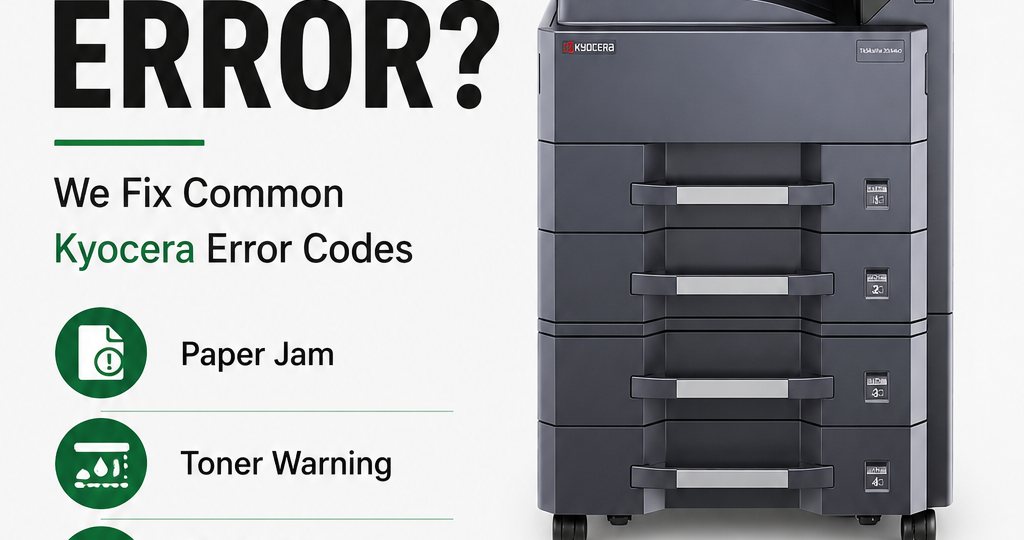
In this guide, Green Wave explains how to troubleshoot common Kyocera printer errors, including paper jams, toner warnings, waste toner box issues, paper feed problems and maintenance alerts.
What Are Kyocera Printer Error Codes?
Kyocera printer error codes and error messages indicate problems affecting the printer’s operation. These may relate to paper feeding, toner supply, open covers, connectivity, memory or internal components.
The exact meaning of an error code can vary depending on the Kyocera printer model. Always check the operation guide for your specific model before attempting repairs.
- Kyocera Paper Jam Error
Possible cause: Paper may be stuck inside the printer, paper cassette, rear cover, duplex unit or document feeder.
How to fix it:
- Check the printer display to identify the paper jam location.
- Follow the on-screen instructions to access the affected area.
- Carefully remove the jammed paper without tearing it.
- Check for small paper pieces left inside the machine.
- Ensure the paper cassette is correctly inserted and the paper is loaded neatly.
- Close all covers and resume printing.
Prevention tip: Use the recommended paper type and size, avoid overfilling the paper tray, and keep paper stored in a dry place.
If paper jams continue after clearing the paper path, the feed rollers or other paper-handling components may need inspection.
- Kyocera Add Toner or Toner Running Low Error
Possible cause: The toner cartridge is nearly empty, empty or not correctly installed.
How to fix it:
- Check the toner status displayed on the control panel.
- Confirm which toner colour needs attention on colour models.
- Follow the printer’s instructions to open the toner compartment.
- Check whether the toner container is correctly installed.
- Replace the toner container if required, using the correct compatible model.
- Close the cover and allow the printer to update its toner status.
If the warning remains after replacing the toner, check the installation and compatibility of the toner container. Do not force the cartridge into place.
- Kyocera Waste Toner Box Full Error
Possible cause: The waste toner box has reached its capacity or is not installed correctly.
How to fix it:
- Check the error message on the printer display.
- Refer to your model’s operation guide to locate the waste toner box.
- Follow the manufacturer’s procedure to remove the box safely.
- Replace it with the correct waste toner box if it is full.
- Ensure the replacement is fitted properly.
- Close the cover and check whether the error has cleared.
Important: Do not empty or reuse a disposable waste toner box unless the manufacturer specifically permits it. Toner powder can spread easily and should be handled carefully.
- Kyocera Paper Feed or Add Paper Error
Possible cause: The paper tray is empty, incorrectly loaded or configured for a different paper size than the print job requires.
How to fix it:
- Check the paper tray mentioned in the error message.
- Load the correct paper size and type.
- Adjust the paper guides so they fit the paper without bending it.
- Make sure the cassette is fully inserted.
- Check the paper size settings in the printer driver.
- Send the print job again.
If the error continues despite correct paper loading, the paper feed mechanism may require professional inspection.
- Kyocera Cover Open Error
Possible cause: A front cover, rear cover, toner cover or other access panel is not fully closed.
How to fix it:
- Identify the cover mentioned on the display.
- Check whether it is fully closed.
- Inspect the cover area for paper or other obstructions.
- Close the cover gently and securely.
- Check whether the printer returns to its ready status.
If the error persists, a cover sensor or latch may need to be checked by a qualified technician.
- Kyocera Memory Overflow Error
Possible cause: The printer does not have enough available memory to process a particular print job. Large documents, complex graphics or high-resolution files may contribute to this problem.
How to fix it:
- Cancel the affected print job if necessary.
- Try printing a smaller document to see whether the problem continues.
- Reduce the print resolution in the printer driver if suitable for your document.
- Simplify complex files or print large documents in smaller sections.
- Check whether a suitable printer driver is installed.
Some models provide additional memory-related settings. Follow the model-specific instructions rather than changing unfamiliar service settings.
- Kyocera Printer Offline or Not Connected Error
Possible cause: A loose USB cable, network connection problem, incorrect printer selection or driver issue may prevent communication with the printer.
How to fix it:
- Confirm that the printer is switched on and ready.
- Check the USB or network connection.
- For network printers, confirm that the computer and printer can communicate over the network.
- Make sure the correct Kyocera printer is selected on your computer.
- Check the print queue for paused jobs or pending documents.
- Restart the print job after correcting the connection.
If the printer remains offline, check its network configuration and driver installation.
- Kyocera Maintenance Kit or Service Error
Possible cause: The printer may require scheduled maintenance, component replacement or technical attention due to an internal fault.
How to fix it:
- Record the complete error message or code displayed.
- Check the operation guide for your exact Kyocera model.
- Follow any manufacturer-approved maintenance instructions.
- If the display requests a maintenance kit or service, contact a qualified printer technician.
- Avoid resetting service counters or entering service mode without the correct repair procedure.
Some internal errors require specialised tools, replacement parts and technical knowledge. Professional diagnosis can help prevent further damage.
General Troubleshooting Tips for Kyocera Printers
Before contacting a printer repair technician, try these basic checks:
- Read the complete error message: Record the exact code and any additional text.
- Check paper and toner: Confirm that supplies are correctly loaded and installed.
- Inspect the covers: Ensure all accessible covers and trays are closed.
- Check connections: Verify USB, Ethernet or Wi-Fi connectivity as applicable.
- Restart safely: If the manual permits it, switch the machine off, wait briefly and restart it. Follow any shutdown instructions on the display.
- Consult the correct manual: Use the operation guide for your exact printer model.
Do not repeatedly restart a machine that displays a persistent internal or service error. Stop troubleshooting and arrange professional assistance if the problem remains.
When Should You Contact a Kyocera Printer Repair Technician?
Basic troubleshooting may resolve paper, toner and connectivity issues. However, professional service may be necessary when:
- The same error returns repeatedly.
- The printer displays a persistent internal or service code.
- Paper jams continue after the paper path has been cleared.
- The machine makes unusual mechanical noises.
- Print quality remains poor after basic checks.
- A maintenance kit or internal component needs replacement.
A qualified technician can inspect the machine, identify the cause and recommend the appropriate repair.
Kyocera Printer Repair and Maintenance in Abu Dhabi
Looking for professional Kyocera printer repair in Abu Dhabi? Green Wave Information Technology Network Services LLC provides printer-related services for businesses that need reliable office printing solutions.
Our services include printer sales, photocopier rental, repair and maintenance, annual maintenance contracts (AMC), and printer consumables and spare parts.
Whether your Kyocera printer displays an error message, experiences repeated paper jams or requires routine servicing, our team can help you identify the appropriate next step.
Need help with your Kyocera printer?
Contact Green Wave to discuss your printer issue and service requirements.
- Call or WhatsApp: +971 50 3536824
- Office: +971 2 5858351
- Email: info@greenwavenet.com
- Website: https://www.greenwavenet.com/
Frequently Asked Questions (FAQs)
Why does my Kyocera printer keep showing an error?
A Kyocera printer may display repeated errors because of paper jams, toner installation issues, incorrect paper settings, connectivity problems or internal component faults. Check the complete error message and follow the troubleshooting instructions for your model.
How do I reset a Kyocera printer error?
Some errors clear after the underlying issue is corrected. Follow the instructions on the control panel or in the operation guide. Not every error can be cleared by restarting the printer, and service errors may require a technician.
Why is my Kyocera printer not printing even though it has toner?
Possible reasons include a paper jam, a paused print queue, an offline connection, an incorrectly installed toner container or another printer error. Check the control panel and print queue before arranging service.
How do I fix a Kyocera waste toner box error?
Check whether the waste toner box is full or incorrectly installed. Follow the manufacturer’s replacement procedure for your specific model and use the correct replacement box.
Where can I get Kyocera printer repair in Abu Dhabi?
Green Wave provides printer repair and maintenance services in Abu Dhabi. Contact our team with your Kyocera printer model and the exact error message to discuss the available service options.
Conclusion
Understanding common Kyocera printer error codes can help you resolve simple issues and reduce unnecessary interruptions to your office workflow. Checking paper, toner, covers and connections is a useful first step.
For persistent error codes, internal faults or recurring printer problems, professional diagnosis is the safer option.
Green Wave is here to help with your printer sales, rental, repair and maintenance requirements in Abu Dhabi. Contact our team for assistance.